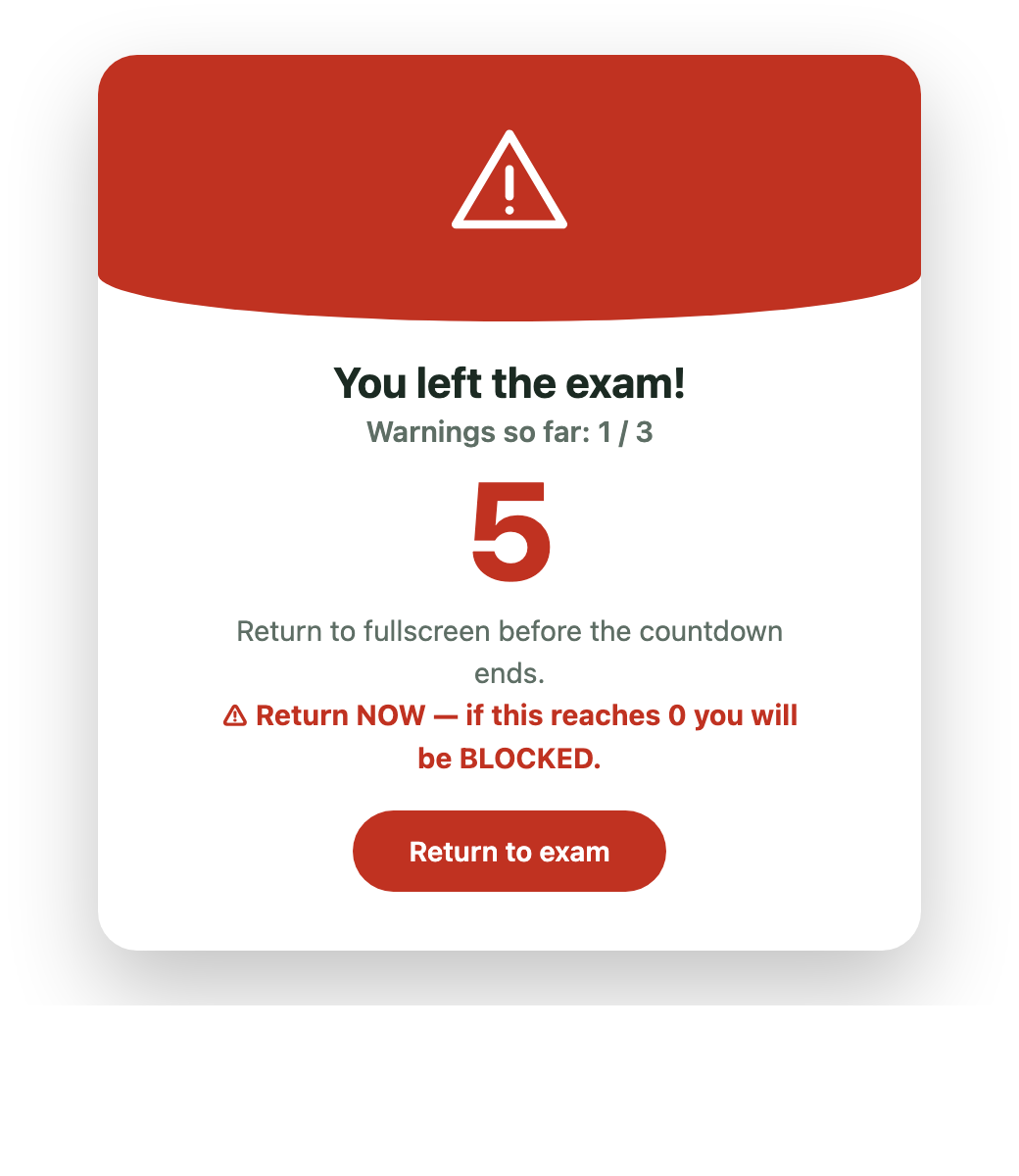
Actual product screen
Return countdown
Changing tabs, leaving fullscreen or moving away from the exam can start a five-second return countdown. Repeated desktop warnings can block the attempt.
Everything a student needs to know about joining, staying connected, warnings, changing a failed device, submitting, and seeing results. Teacher setup and question-authoring details are intentionally not included.
The first successful join establishes your attempt. Use the device and browser you intend to keep for the exam.
Enter your full name consistently. When returning later, the name must match the existing attempt.
Enter your exact university registration number. The same number cannot be used by two students in one exam.
If the exam is network-restricted, connect to the permitted Wi-Fi or network before opening the join page.
Do not open the attempt in another tab, another browser profile, or another device. The existing accepted session is kept active and the new one is refused.
Disconnect external monitors before starting where the browser supports second-screen detection.
The exam records visibility, fullscreen, connection and supported display events. All important enforcement is checked by the server.
Changing tabs, leaving fullscreen or moving away from the exam can start a five-second return countdown. Repeated desktop warnings can block the attempt.
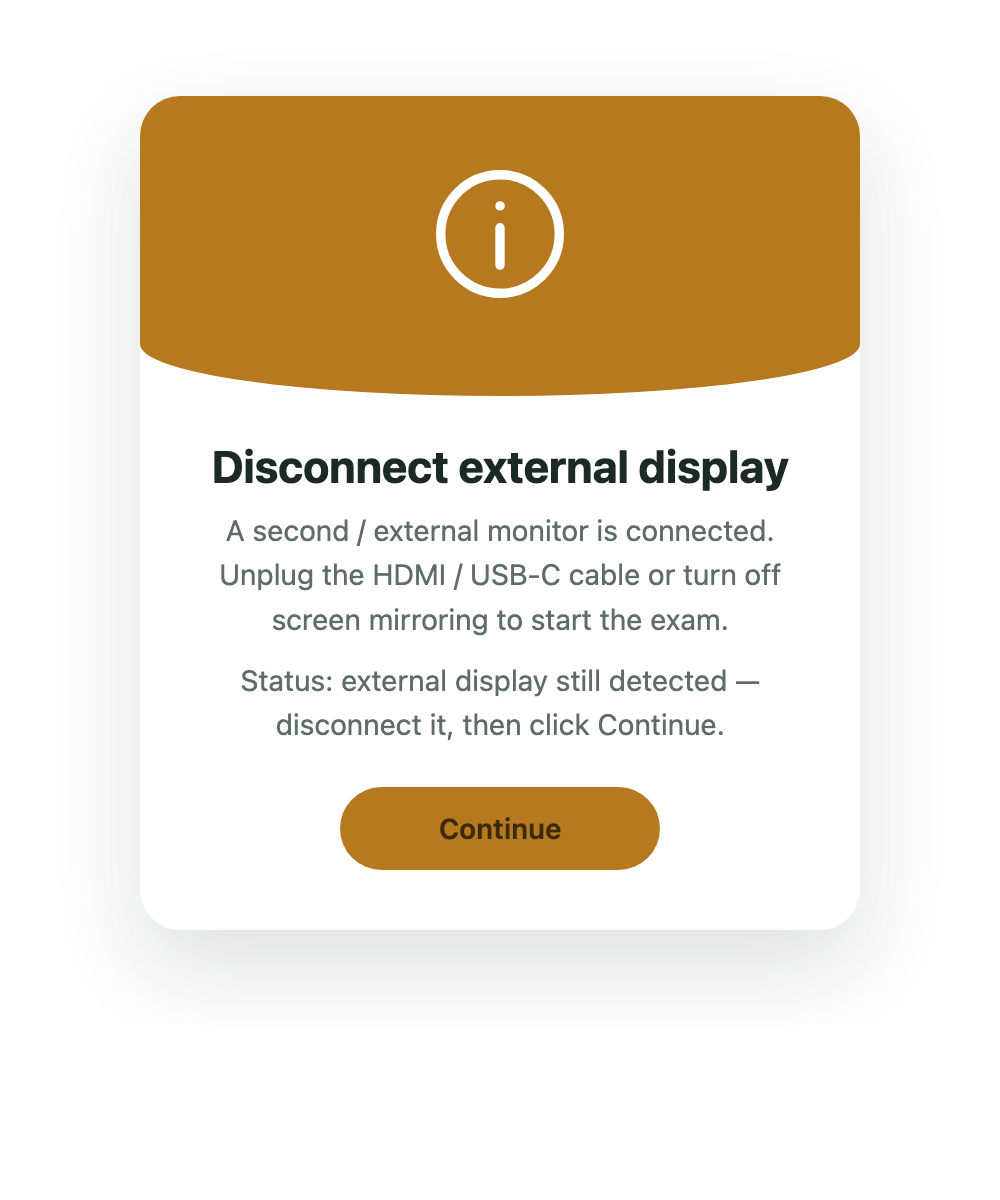
If another screen is detected, disconnect it and follow the on-screen instruction.
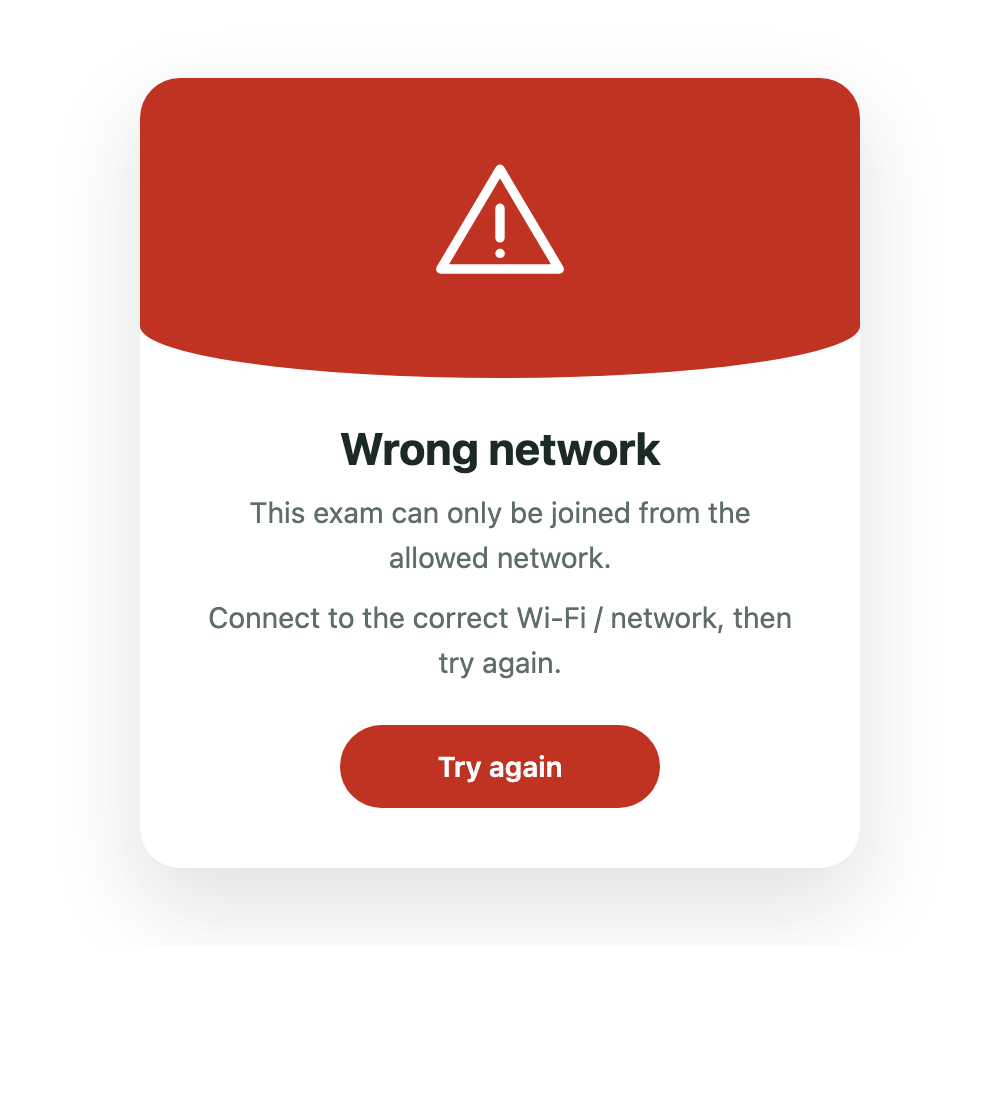
Connect to the network allowed by your teacher, then try the access check again.
Your latest completed save is restored after a refresh or short interruption. Unsaved keystrokes and elapsed exam time cannot be recovered.
Return in the same browser. QuizCast restores your saved session and most recently autosaved answers.
Reconnect as soon as possible. A disconnect longer than the exam’s grace period may add a warning.
Close other tabs and browsers. A refused page does not replace the session that was already accepted.
Stop using the phone and contact your teacher. Do not repeatedly try a laptop until the teacher confirms that device recovery is ready.
Only your teacher can restore access after reviewing the incident. Reload when the teacher tells you the attempt has been unblocked.
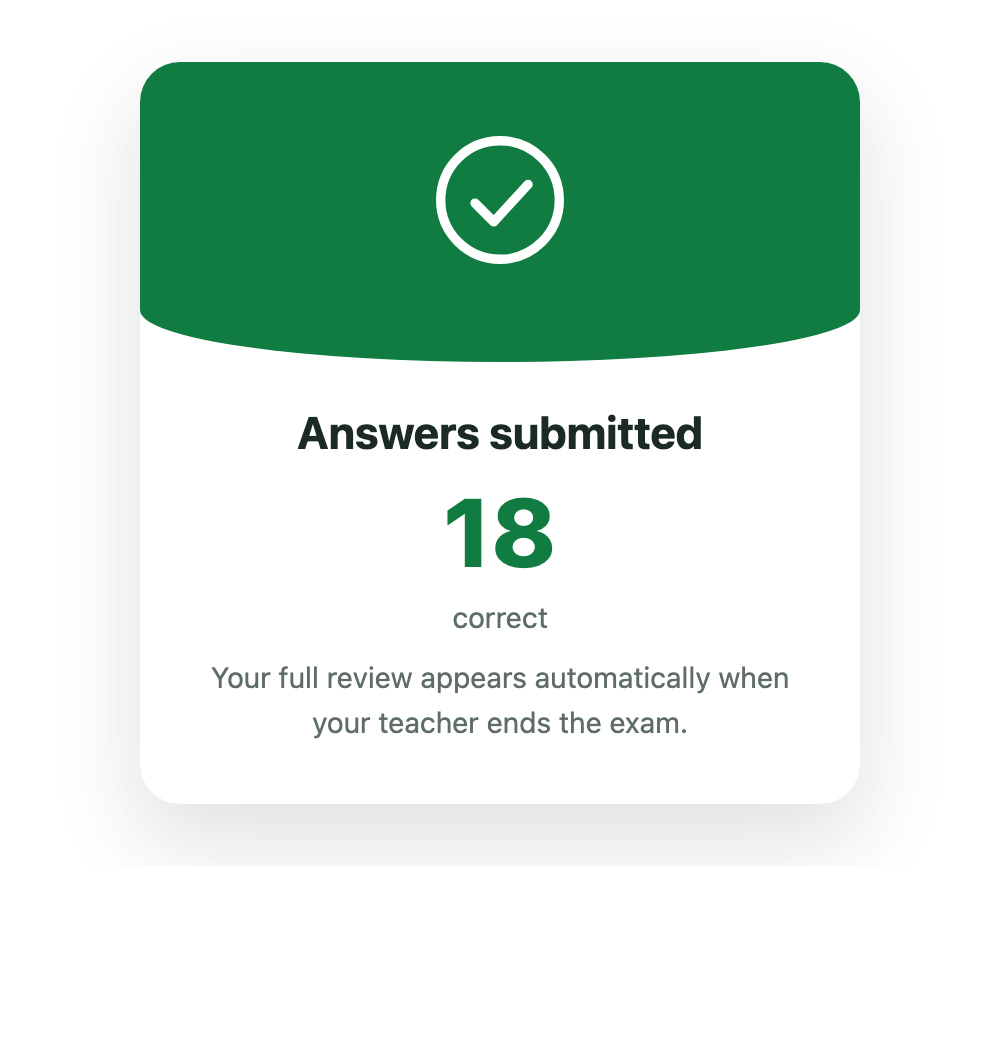
After submitting, you see the number of correct answers. Questions and correct answers remain hidden while classmates are still taking the exam.
You see your assigned questions and can download a PDF. The review stays available in the same browser on the same device, so closing the page is not a disaster — reopen the exam link to see it again. Signing in with your name and registration number cannot reopen it, and neither can another device.